 PDFMech
How to Split a PDF and Rename Each File Automatically Free
Learn how to split a PDF into separate files and rename each one using CSV or TXT. Review page ranges, prevent errors, and download a ZIP with PDFMech.
Do you have a big PDF of multiple documents such as certificates, invoices, reports, etc. and want to split a pdf? It is actually quite simple to split a PDF. The headache arises when you have to rename each of the split PDFs.
Normally, the PDF would split into page-1.pdf, page-2.pdf, page-3.pdf and so on. For instance, you would want to split a pdf into something more specific like invoice-1042.pdf, client-report.pdf, and certificate-001.pdf.
What’s even better is that you can split a PDF each and rename them all within a single operation. This can be useful for files with various names.
PDFMech has split a PDF tool where you can choose to split files by page count or by page ranges. You can also import name lists using CSV or TXT, and the best part is that you can preview the named PDFs before downloading them in a single ZIP file.
The tool runs completely within the browser and eliminates the need for any additional software, like Adobe Acrobat, or custom scripts. Additionally, the process is completely local on your device. Your file is never sent to the PDFMech server for splitting.
Why Split a PDF and Rename the Files Together?
Say you’ve received a hundred page PDF full of separate invoices.
Naturally, you want to send each invoice to its rightful place.
If you use a simple splitter to split a pdf, you’ll just have 100 new separate PDFs named document-001, document-002, etc.
But a smarter approach to document splitting will help you get those PDFs named much more informatively like Invoice-1042-Acme, Invoice-1043-Northwind, Invoice-1044-Contoso.
Suddenly, you can actually identify documents before even opening them.
This smart way of renaming PDFs while splitting them comes in really handy for people like:
Accountants: easily split the stack of invoice batches.
Office Managers: quickly split a pdf and have different staff forms and individual certificates.
Teachers: quickly split the multiple stacks of different student assignments.
Small Business owners: easily split the stacks of receipt folders, order forms and different documents for customer service.
Researchers: split different papers with project name.
Besides saving yourself the time, you can also avoid having mismatched documents in different files with this renaming strategy.
How to Split a PDF and Rename Each File Free Using PDFMech
PDFMech can divide one large PDF into separate documents, match each document with a filename, and package the results into a ZIP—all inside your browser.
Your source PDF, imported filenames, previews, and generated files are not uploaded to a PDFMech processing server.
Step 1: Open the Split a PDF & Rename Tool
Visit PDFMech’s Split a PDF & Rename tool.
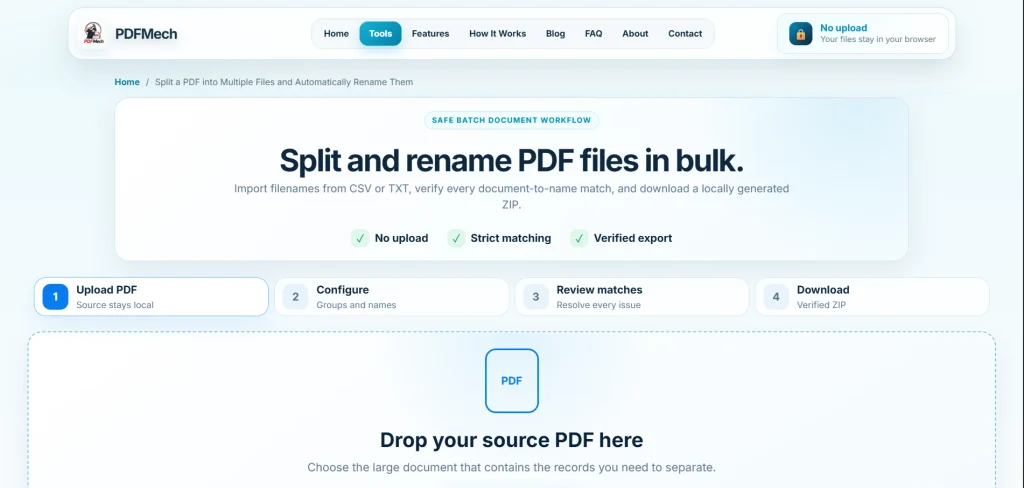
Drop your source PDF into the upload area or select Choose PDF.
For example, you might have a file named October-Invoices.pdf containing 40 pages of invoices.
PDFMech currently supports:
- Split a PDFs up to 100 MB
- Documents containing up to 300 pages
- Up to 200 output PDFs in one batch
The source PDF must contain at least two pages. Keep an untouched copy of your original file until you have verified the exported documents.
Step 2: Configure How the PDF Should Be Split
PDFMech provides two splitting methods.
Option A: Split every N pages
Use Every N pages when each document has the same number of pages.
For example, a 20-page PDF containing ten two-page forms can be divided into ten output PDFs by entering 2 as the number of pages per file.
Other examples include:
- One page per invoice
- Two pages per certificate package
- Three pages per report
- Five pages per document section
If the final group contains fewer pages than the selected amount, PDFMech keeps it and marks it as a partial final group. It is not silently discarded.
Option B: Use manual page ranges for split a pdf
Use Manual ranges when the documents have different lengths.
Suppose an eight-page PDF contains these records:
| Output document | Source pages |
|---|---|
| Invoice 1042 | 1–2 |
| Invoice 1043 | 3 |
| Monthly report | 4–6 |
| Supporting documents | 7–8 |
Enter the ranges as:
1-2, 3, 4-6, 7-8Manual mode requires at least two output groups. Before export, every source page must be assigned exactly once. Overlapping or omitted pages will prevent the batch from being generated.
Step 3: Add the Output Filenames
You can enter each filename manually or import a prepared CSV or TXT file.
Manual naming is suitable for smaller batches. For larger batches, preparing filenames in Excel or Google Sheets is usually faster.
Example CSV:
filename
2026-10-05_Acme_Invoice-1042.pdf
2026-10-06_Northwind_Invoice-1043.pdf
2026-10_Monthly-Report.pdf
2026-10_Supporting-Documents.pdf
The first row is the column heading. Each following row contains one proposed output filename.
Adding .pdf to every imported name is optional because PDFMech adds the extension when needed.
Step 4: Import a CSV or TXT Filename List
Export your spreadsheet as a CSV and choose it in PDFMech.
A spreadsheet can contain multiple columns:
| Document number | Description | filename |
|---|---|---|
| 1 | Acme invoice | Acme_Invoice-1042.pdf |
| 2 | Northwind invoice | Northwind_Invoice-1043.pdf |
| 3 | Monthly report | Monthly-Report.pdf |
| 4 | Supporting records | Supporting-Documents.pdf |
PDFMech suggests the most likely filename column based on headings such as filename, document name, or name. Review the selection and choose a different column if necessary.
For CSV files, you can also specify whether the first row contains column headings.
For TXT files, place one filename on each nonblank line:
Acme_Invoice-1042.pdf
Northwind_Invoice-1043.pdf
Monthly-Report.pdf
Supporting-Documents.pdf
The filename list supplies names only. You must still configure the correct page groups.
Step 5: Review Every Document-to-Filename Match
This is the most important part of the workflow.
For every output group, PDFMech displays:
- A preview of its first source page
- Its source-page range
- The assigned CSV or TXT row
- The proposed output filename
- Its current validation status
You can then:
- Assign a specific imported row to a document group
- Move a filename assignment up or down
- Replace an imported assignment with a manually entered filename
- Correct the final output filename
- Explicitly ignore an imported row that is not needed
Changing one assignment does not silently shift every filename that follows it.
Do not rely only on spreadsheet order. Compare the page preview, source range, and proposed filename before exporting.
Step 6: Resolve Validation Problems
PDFMech locks export until the batch passes its validation checks.
Problems that can block export include:
- A group without a filename
- Duplicate output filenames
- Filenames that collide after safe normalization
- Repeated or invalid imported-row assignments
- Overlapping page ranges
- Source pages omitted from every group
- Imported rows that have not been assigned or explicitly ignored
- Page groups outside the source document
PDFMech replaces unsupported filename characters and shows the normalized export name. Review these changes carefully because two different names can become identical after normalization.
For example:
Ali:October.pdf
Ali/October.pdf
Both could normalize to the same safe filename, so PDFMech detects the collision and prevents export.
Step 7: Generate and Download the Files after split a pdf
Once every check passes, select Generate PDFs + ZIP.
PDFMech creates the individual PDFs locally and packages them into a ZIP archive. After generation, you can download:
- The verified ZIP archive
- Each output PDF individually
- An optional CSV manifest
The manifest records:
- Output filename
- Source pages
- Page count
- Integrity status
Before reporting success, PDFMech checks that the generated PDFs have the expected page structure and that the ZIP contains every expected, nonempty entry.
After downloading, extract the ZIP and visually inspect the results after split a pdf. For sensitive or important batches, compare every exported document with the original PDF and filename list.
Important document considerations before Split a pdf
Password-protected PDFs cannot be processed directly. If you are authorized to access the document, unlock it first using PDFMech’s Unlock PDF tool.
Splitting creates new PDF files and may invalidate digital signatures attached to the source document.
Browser memory also affects large batches. Keep the tab open during generation and consider processing very large documents in smaller batches.
Split and rename your PDF files with PDFMech
How to Split a PDF into Individual Files with Names from Excel for Free
Most often, people have one huge PDF with all their files and an Excel sheet containing all the different filenames.
Take, for example, a PDF generated from a Word mail merge containing 75 letters.
In this case, you will have to make a separate PDF out of every single letter, and then save each PDF using the filename from the Excel sheet which makes it harder to split a pdf.
You can accomplish this using the following workflow:
Check the number of pages in each letter.
Write the names of the PDF files you will need in Excel.
Save the relevant Excel sheet as a CSV file.
Open PDFMech’s Split a PDF & Rename tool.
Determine the number of pages that will comprise each file and decide if they should be Split manually or if they can be Split automatically based on a fixed page number.
Once the Split settings have been decided, import your CSV file. This is when the files can be named.
Once you have split a pdf that was huge, you can download the zipped file.
If there are 75 letters in your batch, and each letter is only one page long, then there should be 75 files and 75 filenames.
If some letters are of a different length, it’s best to use manual split ranges.
By using the PDFMech tool, you don’t need a VBA script or an external bulk file-renaming tool.
Best Practices for Naming PDF Files
Consistently naming your files makes archiving, sorting, and finding them a whole lot easier.
The ideal filename format would look something like this:
Date_DocumentType_Identifier.pdf
Some Examples of This:
Document Type
Filename Suggestion
Business Invoice
2026-10-05_Invoice-1042.pdf
Monthly statement
2026-10_Account-Statement.pdf
Project Report
Project-A_Progress-Report_v02.pdf
Certificate
Course-A_Certificate-001.pdf
Best practices for naming files:
Keep Dates Consistent. Using the format of YYYY-MM-DD makes your files easier to sort sequentially.
Add Unique Identifiers. Adding things such as invoice numbers, project codes, or even document IDs helps in organizing files of similar names.
Avoid Troublesome Characters. Try avoiding characters such as backslashes, forward slashes, and symbols as some of them can have adverse effects on some systems.
Keep it Easy to Read. Long names have a tendency of getting in the way, especially with shorter names.
Padding filenames with zeros allows documents like Document-001, Document-002, Document-010, etc., to sort predictably.
These suggestions have been extracted from the guidance provided by the Harvard Medical School for naming files. This guidance advocates the use of names that clearly state what is contained, consistency in dates, and numbering systems that are easy to comprehend.
Common Problems When Split a pdf and Renaming PDFs free
The Number of Filenames Doesn’t Match the Number of Documents
When creating a PDF with multiple pages, it’s possible that your PDF creates more files than the number of entries in your CSV, so one of your output files may end up with an unassigned name.
It’s likely that a spreadsheet row has been deleted, a filename cell is empty, or you have improperly grouped pages.
If there are more entries in your CSV than PDF output files, you can determine if the remaining names should be reassigned or discarded.
When matching filenames with output documents, do not arbitrarily assign the remaining names.
The PDF Files Are Split at the Wrong Pages
The problem lies in document length discrepancies between files within the source PDF.
Sometimes, splitting by page count does more harm than good.
To resolve the problem, check the source PDF file and apply manual page ranges.
In some cases, the source PDF files may be different from the other files. For instance, page 1 through page 3 may belong to a certain report while page 4 is associated with an unrelated invoice.
Some Pages Are Missing
Compare the original number of pages and configured groups of pages.
For instance, if the source document is 60 pages long, ensure all pages are allocated to an output document.
While PDFMech can determine if a page was missed from the source document, you will still need to allocate the page to the appropriate output.
Two Output Files Have the Same Name
The system can also assign different file names to the same document based on any available variable. For instance, the system could rename documents as they are being exported according to the date and time they were created or the document name.
Examples of some possibilities are:
A document is named ‘Invoice’. It is renamed ‘Invoice-1042’ and ‘Invoice-1043’.
The PDF Is Password-Protected
The encrypted document must first be decrypted before processing can begin. If you are not authorized to use this document, then do not use it, even if you are capable of decrypting it. If you do not know the password, then ask the document owner for it.
The PDF Contains Scanned Pages
While you can still separate the pages of a scanned PDF, provided the file can be opened and processed, splitting a scanned PDF will not magically turn the image into text.
To turn text on a scanned image into copyable and searchable text, PDFMech’s OCR tool will come in handy.
PDFMech’s OCR tool is optimized for clear printed English. Any poor quality scans, handwriting, or complex document layouts will decrease the accuracy of the OCR.
The Browser Struggles with a Very Large PDF
With larger batches of images and larger PDF documents, devices tend to slow down and use up memory.
You should work in smaller batches to avoid losing your progress.
Have the PDF you want to process ready and keep the original file names, so you don’t have to do it all over again.
Is It Safe to Split and Rename PDF Files Online?
Before trying online tools, ask yourself where the processing of your document takes place.
Most PDF services use the cloud to process uploaded documents.
PDFMech has a different model. The tools run within the browser and PDFs are not sent to editing servers.
This service is a good alternative to most of the online tools and would help if there are work documents you wouldn’t upload to a different service.
There are certain risks to the documents even if they are processed locally.
Be aware of security best practices, such as maintaining security patches for both browser and OS, not disclosing any private data in document names, and checking any document that was edited prior to sharing it.
You can explore PDFMech’s other browser-based PDF tools for related tasks.
Important: What About Digitally Signed PDFs?
PDF files that are split lose their document digital signature for each new PDF that is created.
If a document is split that was digitally signed, save the original file that was signed.
Do not think of a split copy as a signed original.
For more information, read Adobe’s explanation of signed PDF limitations.
Split PDF vs. Extract PDF Pages vs. Merge PDF
These operations sound similar but solve different problems.
| Task | What it does |
|---|---|
| Split PDF | Divides one PDF into multiple separate PDF files |
| Split & Rename PDF | Divides a PDF and assigns individual output filenames |
| Extract PDF Pages | Creates a new PDF containing selected source pages |
| Merge PDF | Combines multiple PDF files into one document |
| Delete PDF Pages | Removes unwanted pages from the output PDF |
If you have a combined document and need many separately named files, choose Split & Rename PDF.
If you only want to remove unnecessary pages, use PDFMech’s Delete PDF Pages tool.
If you need to reorganize the source document before splitting it, you can use the PDFMech PDF Editor.
For comparison, Adobe’s PDF splitting documentation describes conventional splitting options such as page counts, file sizes, and top-level bookmarks.
Frequently Asked Questions
Is there any tool that lets me split a pdf and rename PDF files for free?
Yes. PDFMech provides a free tool for split a PDF and renaming the resulting files. The tool is browser-based, and it allows you to name page groups and export the output files.
Is it possible to split a PDF into several different files, each with a different name?
Yes. It is possible to split a PDF and each document can be given its own unique name. You can either type in the names yourself or use a CSV or TXT file to import them.
Can Excel help me name PDF files automatically?
Yes. Once you’ve finalized the names in Excel, export the sheet to CSV. PDFMech makes it easy to assign the names and double-check your work. However, the software doesn’t have the ability to scan your PDFs to come up with names on its own.
Can I split my PDF into individual pages using split a pdf tool?
Yes. Select the option to split by page count, set the page count to 1, and name each of the generated documents.
Can I save multiple pages into single PDFs?
Yes. Select a page count value of greater than one for files with a constant page length. Select different page lengths for different files.
Can I split a PDF without having to use Adobe Acrobat?
Yes, splitting a PDF is easy even if you don’t have Acrobat. PDFMech is one of the browser tools that doesn’t need Acrobat.
Can I split a pdf and rename more than 100 PDFs at a time?
PDFMech supports large named batches as long as you have enough memory in your browser. With large jobs, make sure to double-check everything, especially the names, before downloading the files.
Will the PDF file have any quality issues when split?
PDFMech is built on native page duplication which creates an exact copy of the source PDF after split a pdf. This preserves document features like links and forms as well as original formatting, but since split files are technically new, please review your PDF files to make sure everything works correctly before finalizing the split.
Will PDFMech overwrite my source PDF after split a pdf ?
No, the new files created by PDFMech are separate from the original. We suggest keeping your original files until you have tested your new documents.
Final Thoughts: Split a pdf and Organize PDFs Without Repetitive Renaming
Splitting, sorting and filing different PDFs manually can make an otherwise simple and fast job tedious.
The easiest, most efficient, and fastest way to do this is to prepare the page sets, assign the file names from a predefined list, and then output all the named PDFs.
The process of splitting and naming PDFs is a tedious, multi-step job. PDFMech does this all in a single process that takes place on your web browser.
You can split PDFs by any page count you want. You can use custom page sets. You can use an input filename list. PDFMech even allows you to correct problems and download all your PDFs at once.
Ready to organize your documents?
Split a PDF and rename each file free with PDFMech →
No software installation, no account required, and no PDF upload to an editing server.